Connect your site to GitHub: re-check on every deploy
Updated 28 Aug 2026
If Relvato watches a site that isn’t on WordPress — a store, a landing page, or an app built with Lovable, Bolt, v0 or Replit — you can connect the GitHub repository you deploy from. After that, every push re-runs the site’s checks automatically, so a deploy that breaks something is caught in minutes. Here’s why that matters, and how to set it up.
Why re-check on every deploy
Most things break at deploy time. A dependency bumps, an environment variable goes missing, a component silently changes — and the checkout, a key page, or a form stops working. Scheduled checks will catch it eventually, but ‘eventually’ can be hours, and by then real visitors have hit the broken page.
Connecting GitHub closes that gap. The moment you push, Relvato re-runs the journeys you’ve set up for that site — so if the deploy broke something, you hear about it right away instead of on the next scheduled run. It’s the difference between finding a bug yourself and having a customer find it for you.
This complements your other triggers rather than replacing them: scheduled runs and event-based checks keep working. Deploy is simply the most valuable moment to look, because it’s when things are most likely to have changed.
What you need first
Two things. First, the site has to be added to Relvato as an ‘Any website / AI-built app’ connection — that’s the mode for anything not running the Relvato WordPress plugin.
Second, you need to have verified that you own the domain. Relvato won’t run checks on a public site until ownership is proven, so if you haven’t done that yet, do it under Settings → Connection before connecting GitHub. Once both are in place, the GitHub step takes under a minute.
Step 1 — Open the deploy section in Settings
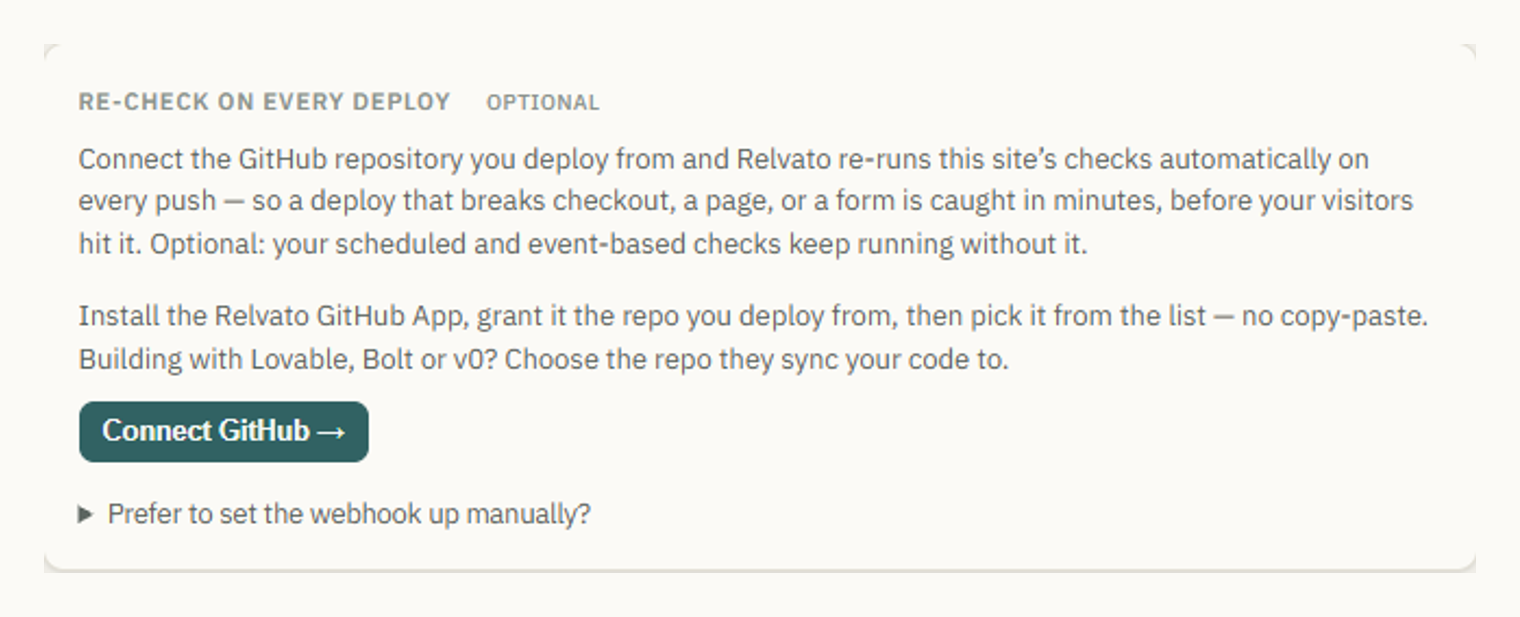
Open your site in Relvato and go to the Settings tab. Under ‘Re-check on every deploy’ you’ll find the GitHub connection. It’s marked optional because your scheduled and event-based checks run with or without it — connecting GitHub just adds the deploy trigger.
Click Connect GitHub to start. Relvato opens the next steps in a popup window, so you stay on your site the whole time.
Step 2 — Install the Relvato GitHub App
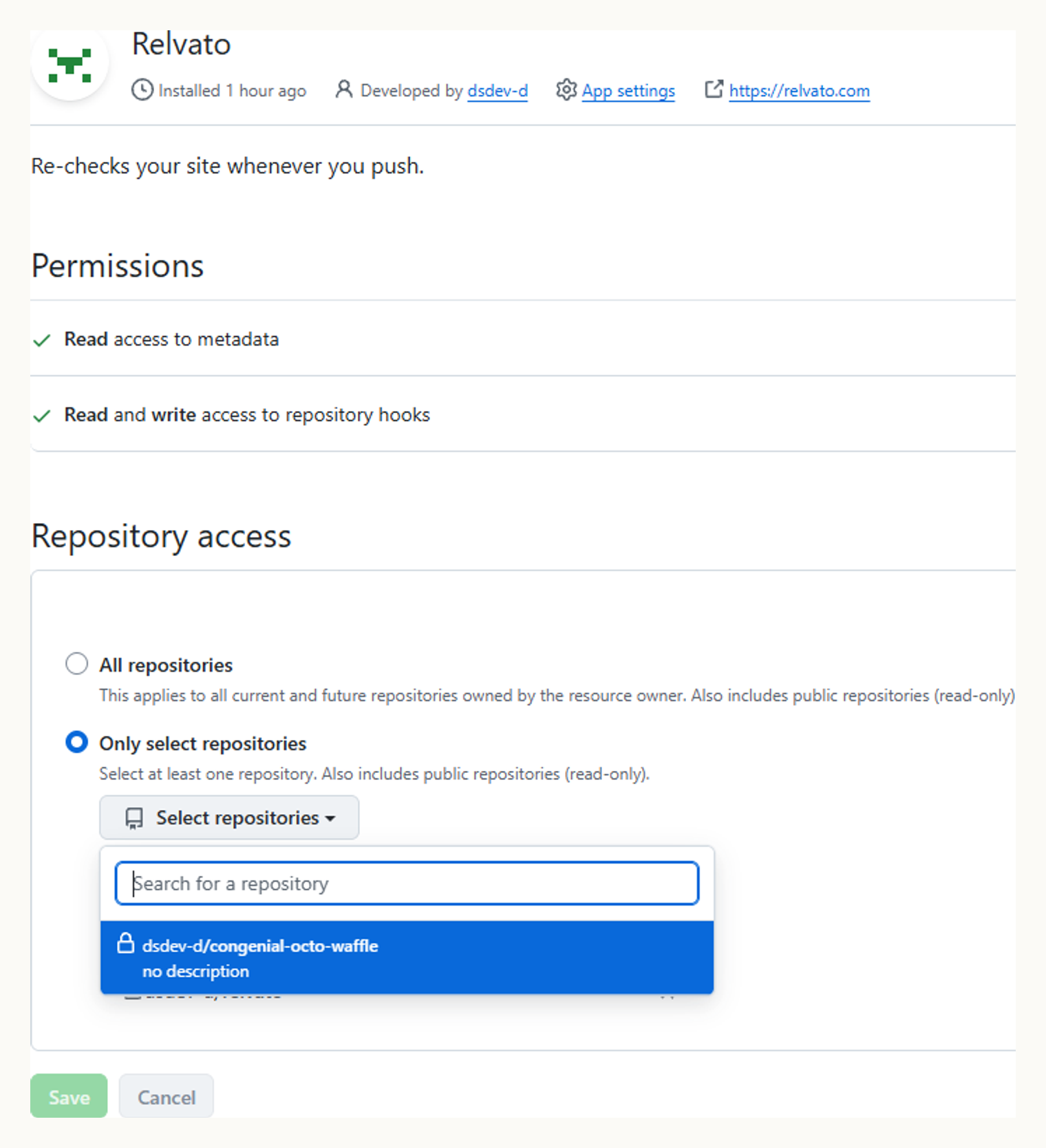
The popup takes you to GitHub to install the Relvato app. This is a GitHub App, not a broad OAuth login: it asks only for read access to repository metadata and permission to manage webhooks. It cannot read your source code.
Choose ‘Only select repositories’ and grant just the repo you deploy this site from — you can add more later. Building with Lovable, Bolt, v0 or Replit? Pick the repository those tools sync your code to. Click Save to continue.
Step 3 — Pick the repository
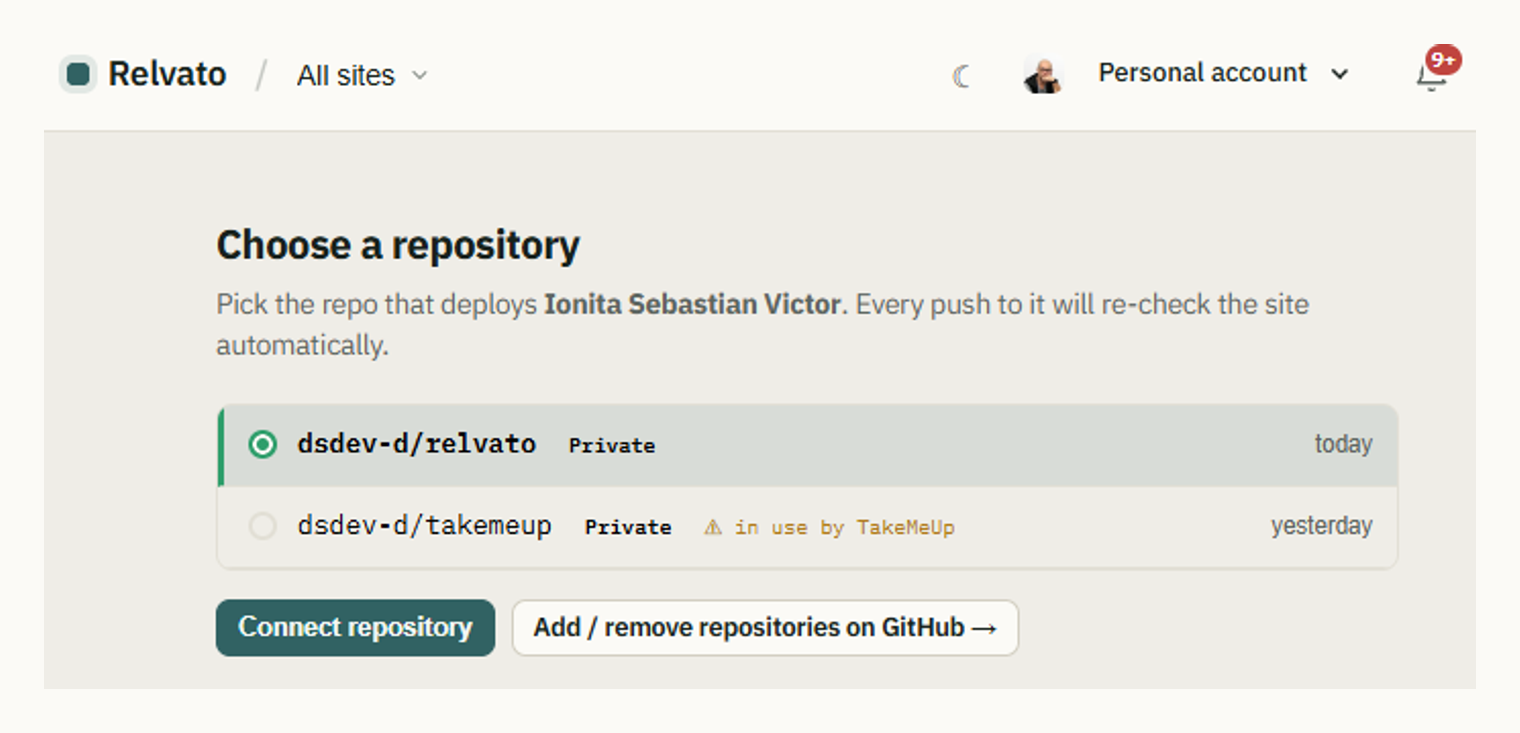
Back in Relvato (still in the popup), you’ll see the repositories you just granted. Pick the one that deploys this site and click Connect repository. The most-recently-pushed repo is preselected, so usually it’s one click.
If a repo is already connected to another of your sites, Relvato flags it — connecting the same repo to two sites means a push re-checks both, which is occasionally what you want but usually not.
Step 4 — You’re connected
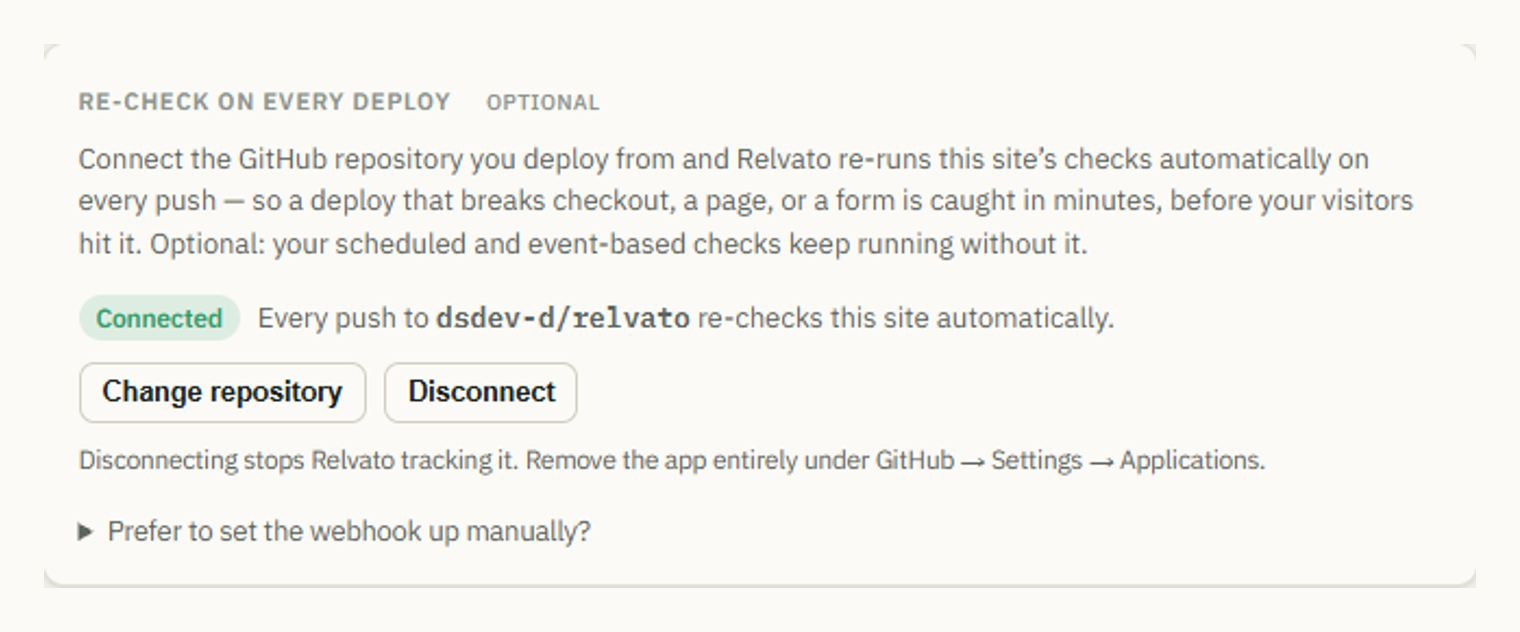
That’s it. The popup closes and the settings card shows the connected repository. From here you can change the repository or disconnect at any time.
Disconnecting stops Relvato tracking the repo; to remove Relvato’s access on GitHub entirely, uninstall the app under GitHub → Settings → Applications.
What happens on every push
When you push to the connected repository, GitHub notifies Relvato, and Relvato re-runs the journeys enabled for that site — the same checks that run on your schedule. If one fails, you’re alerted through your usual channels.
Only the site mapped to that exact repository is re-checked. A push to one repo never triggers a different site, even when several sites live under the same GitHub account.
One caveat: a site whose domain isn’t verified yet won’t run on a push. Verify ownership first, and the deploy trigger starts working from the next push.
Connecting more than one site
You can connect as many sites as you like, each to its own repository, all under a single GitHub App installation. When you grant more repositories, they simply appear in the picker for whichever site you’re setting up.
Keep each site pointed at its own repo. Relvato warns you if you’re about to reuse a repo that’s already connected elsewhere, so an accidental double-mapping is hard to do without noticing.
Prefer a manual webhook?
You don’t have to use the GitHub App. Under the same settings card, ‘Prefer to set the webhook up manually?’ reveals a plain deploy webhook URL and secret you can add to GitHub, GitLab, or any host that can POST on deploy. The GitHub App just automates that setup and adds the repo picker.
Either way, the end result is identical: a signal on every deploy that re-runs your checks.
FAQ
Can Relvato see my source code?
No. The GitHub App requests only read access to repository metadata and permission to manage webhooks — never the contents of your repositories. It uses the push notification as a trigger, nothing more.
What if I deploy somewhere other than GitHub?
Use the manual webhook shown under ‘Prefer to set the webhook up manually?’ — any host that can send a request on deploy (GitLab, a CI step, a deploy hook) works. And even with no deploy trigger at all, your scheduled and event-based checks keep running.
Will a push to one repository trigger my other sites?
No. Relvato matches each push to the exact repository a site is connected to, so only that site is re-checked — even when many sites share one GitHub account.
Do I still need scheduled checks if I connect GitHub?
Yes, and they keep running. Deploy is the highest-value moment to check, but scheduled runs catch issues that appear between deploys — an expiring certificate, a third-party outage, a slow creep in performance.
Why isn’t anything running after I connected GitHub?
The most common reason is an unverified domain. Relvato won’t run checks on a public site until you’ve proven ownership, so complete that under Settings → Connection; the deploy trigger works from the next push after that.